Trade BTG on Binance Wallet
Binance Wallet is the self-custody wallet inside the Binance app. Trading here is an on-chain swap from your wallet, not an order on the Binance Alpha order book. The balance you spend is in the wallet, and the swap routes through on-chain liquidity.
Alpha or Wallet?
| Binance Alpha | Binance Wallet | |
|---|---|---|
| What it is | Alpha account and order book | Self-custody wallet and swap |
| Order types | Limit, stop limit, instant (when available) | Swap at the quoted route |
| Balance | Alpha account | Wallet address |
| Best for | A limit order at a chosen price | A direct swap from self-custody |
If you want a limit order, use Trade BTG on Binance Alpha. If you want to swap from the wallet that holds the token, continue here.
Before you start
- Binance app with Binance Wallet created and backed up. See Binance App Wallet if you have not set it up.
- The wallet on BNB Smart Chain (BSC), chain ID 56.
- A small BNB balance for network gas, unless the confirmation screen says the fee is sponsored.
- BTG for a sell or USDT for a buy.
- The verified contract from Check the BTG Contract:
0x4C9027E10c5271Efca82379D3123917AE3F2374e.
Steps
1. Switch to Wallet
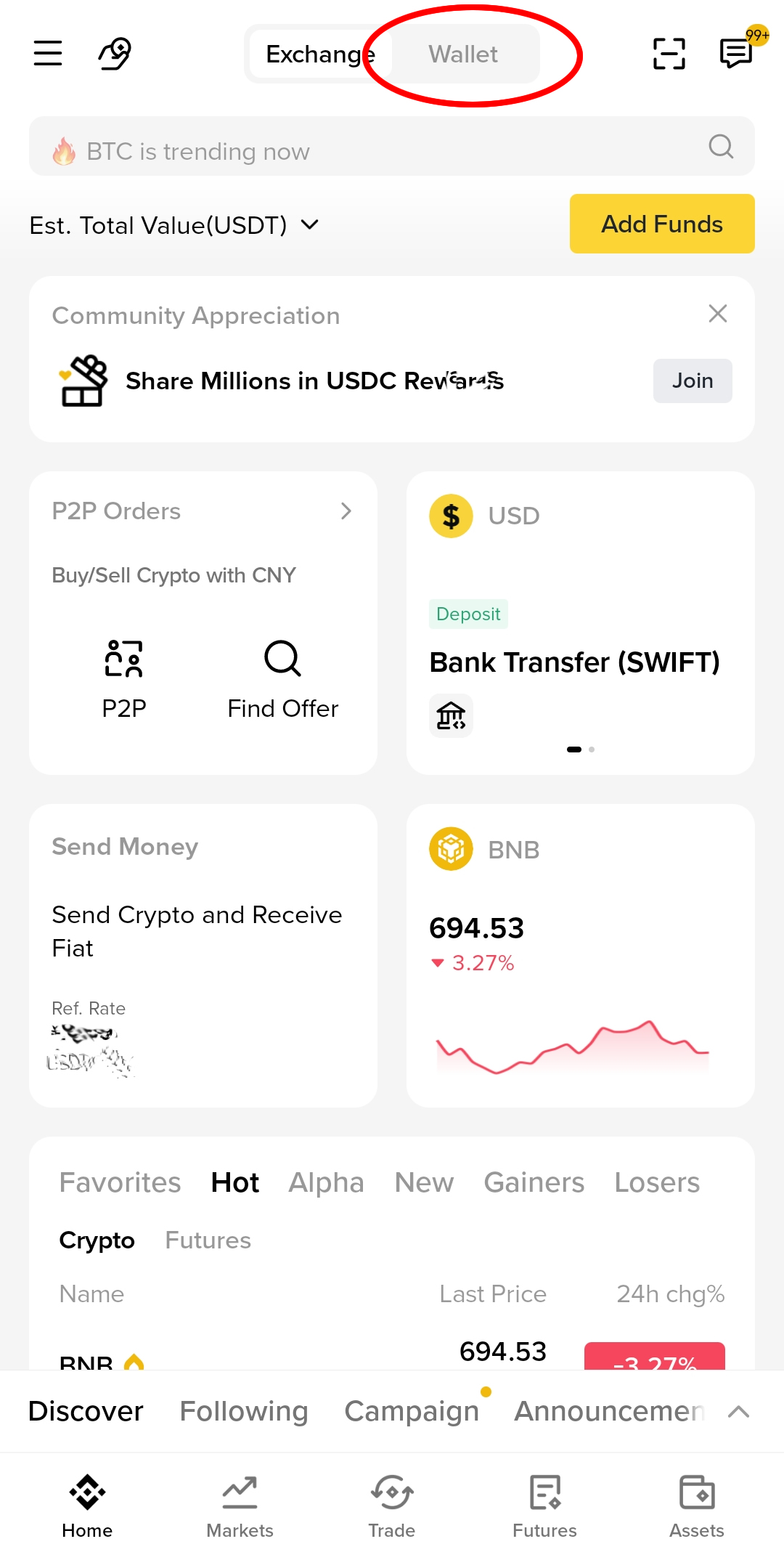
Open the Binance app and switch the top toggle from Exchange to Wallet.
2. Open Alpha from the Wallet home
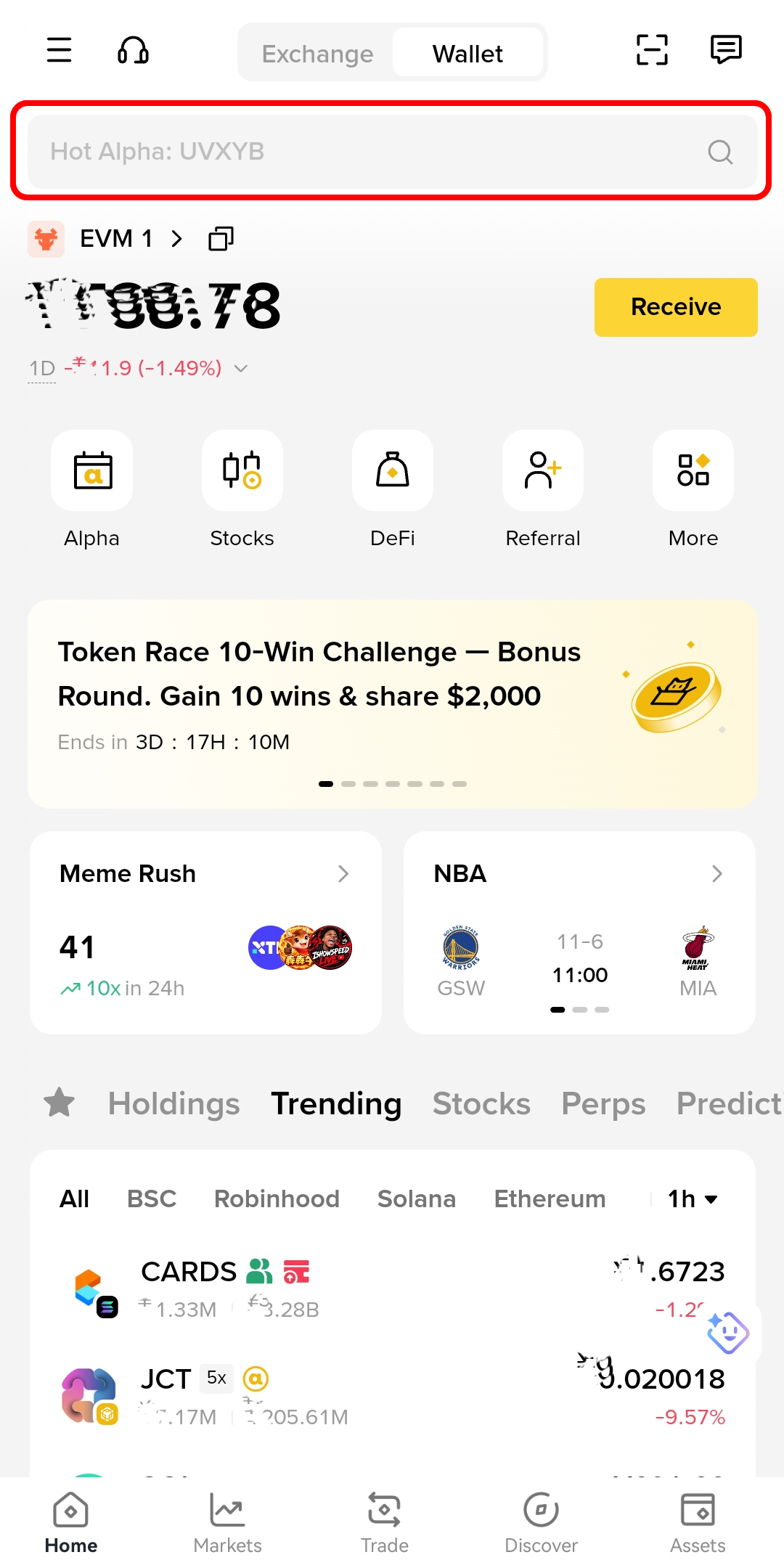
On the Wallet home, select Alpha, or use the search field. Alpha here opens the token market inside the wallet; it is not the same balance as the Alpha account in the previous page.
3. Search for BTG and pick the right token
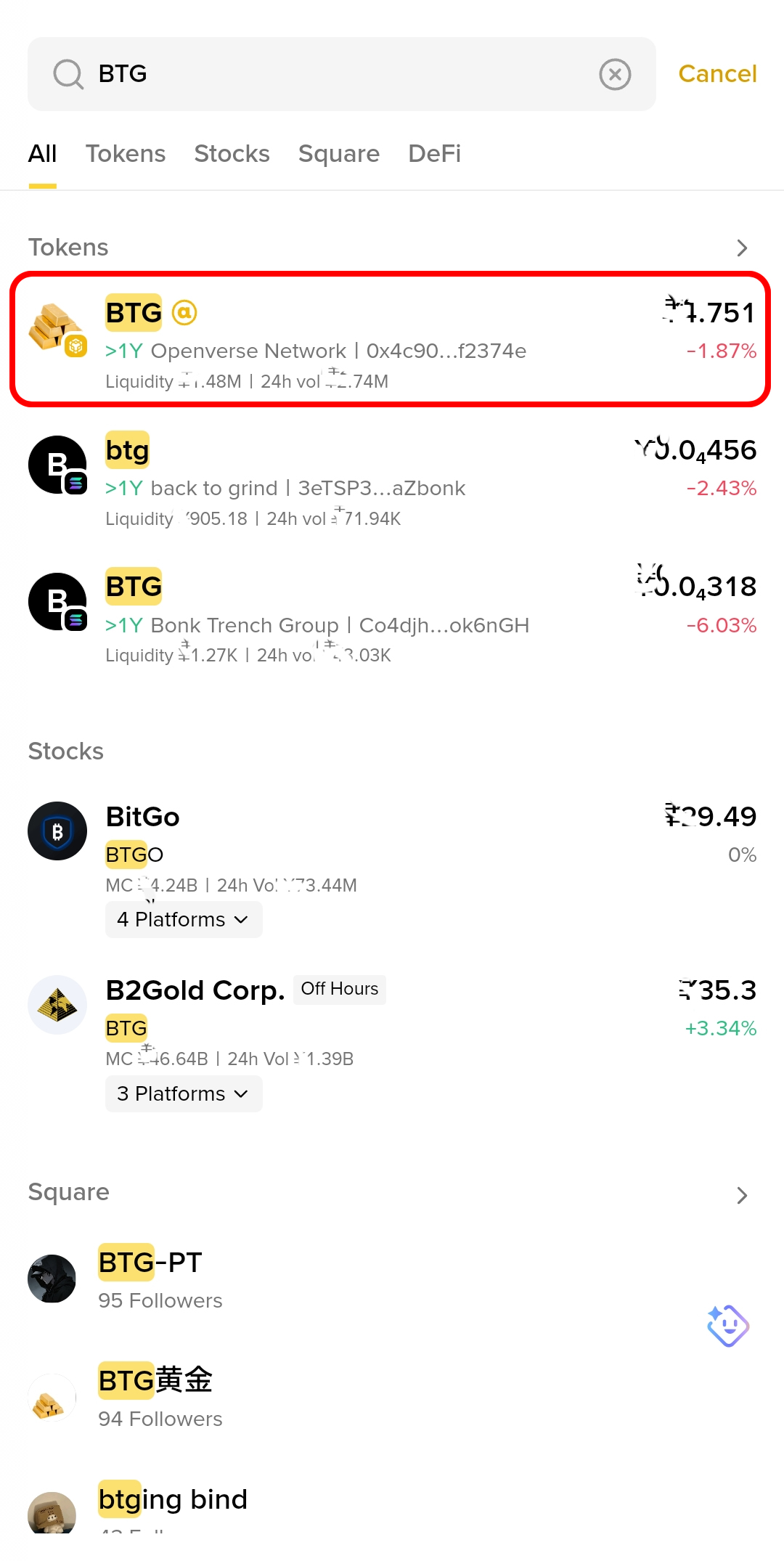
Enter BTG. In the Tokens results, choose the row that shows:
- BTG with the gold-bar icon
- Openverse Network
- contract beginning
0x4c90…and endingf2374e - the BSC network
The screenshot also shows other tokens with BTG in their names. They are different contracts; do not pick them.
4. Open the token and choose Trade
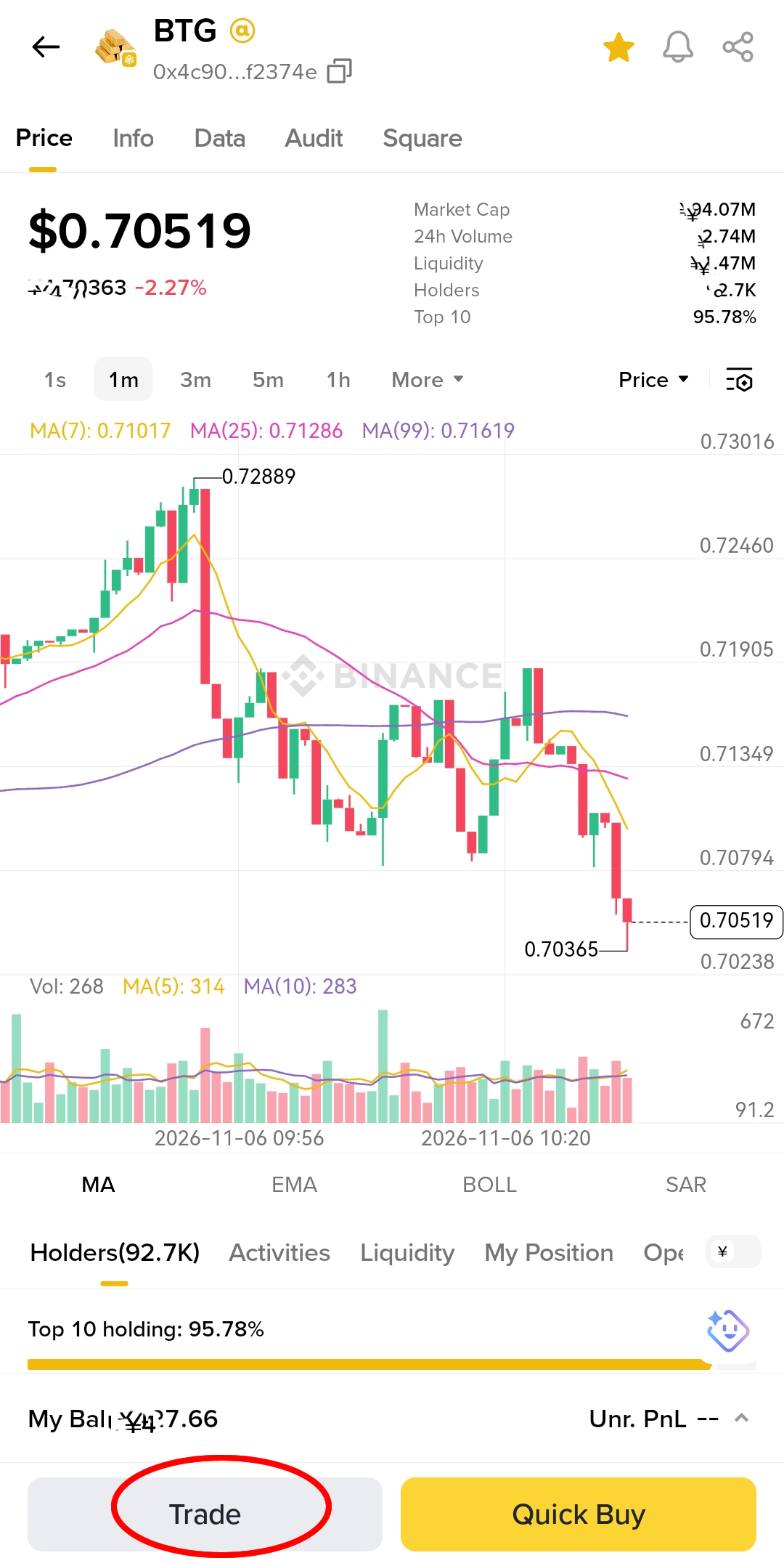
On the token page, check the contract in the header, then select Trade. Quick Buy opens a shorter form; Trade shows the full route and slippage settings.
5. Review the swap
The form opens with BTG → USDT for a sell. To buy, switch the sides or change the “To” token to BTG.
Check:
- From / To and the wallet address shown under each token.
- Rate: how much USDT one BTG is worth at the quote.
- Slippage: auto by default; a higher value accepts a worse fill.
- Min. received: the floor after slippage.
- Route: the liquidity source. It can change between quotes.
- Service fee and the network fee shown at confirmation. “Free” service fee does not necessarily mean free gas.
If the button says Approve & Swap, the first step is a token approval. Read the approval amount; approve only what you need.
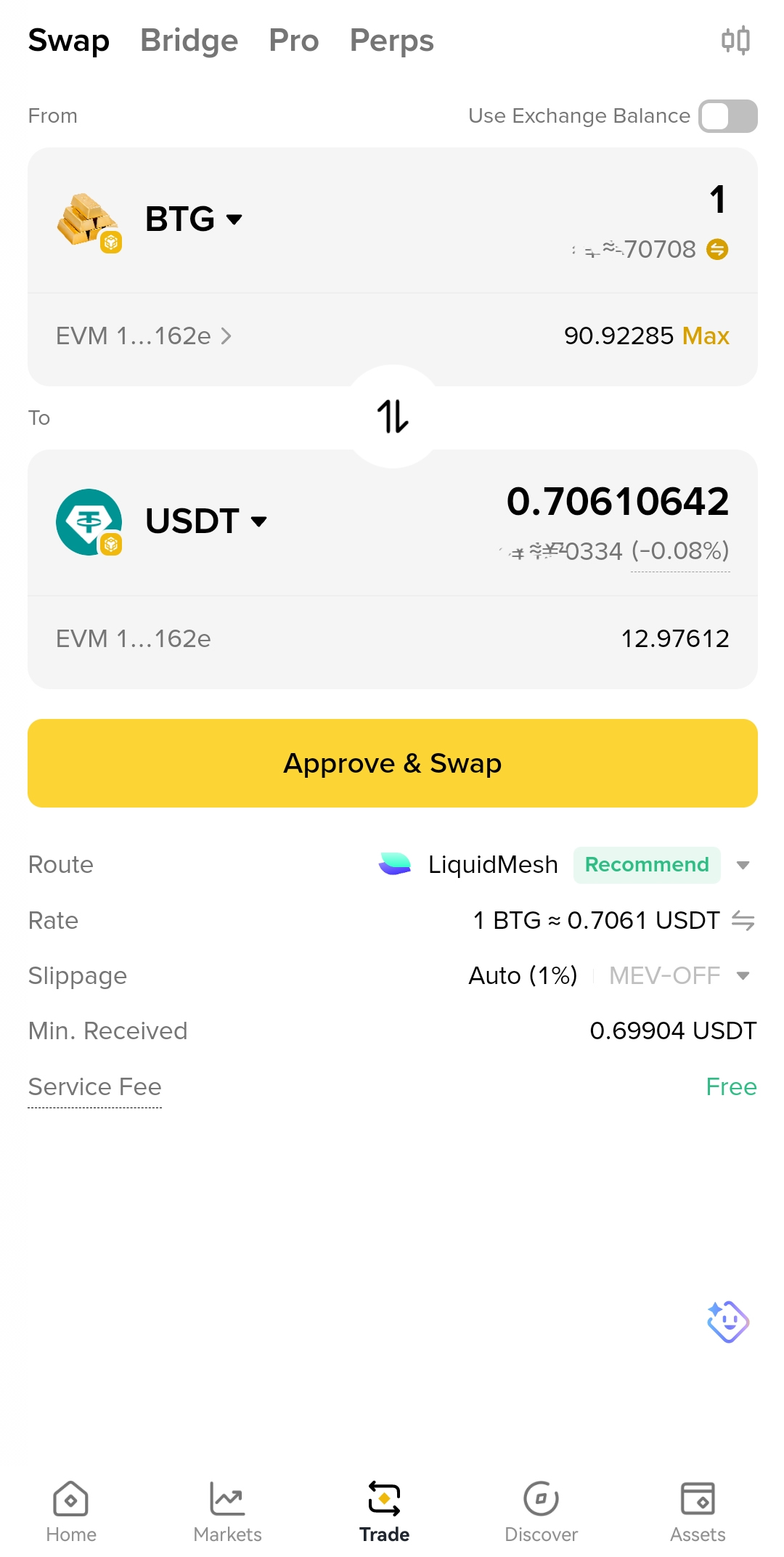
6. Confirm and check the balance
Confirm in the wallet and wait for the transaction. Then open Assets and check the BTG balance and the transaction history. If you bought, BTG appears in the token list; if you sold, the USDT balance increases.
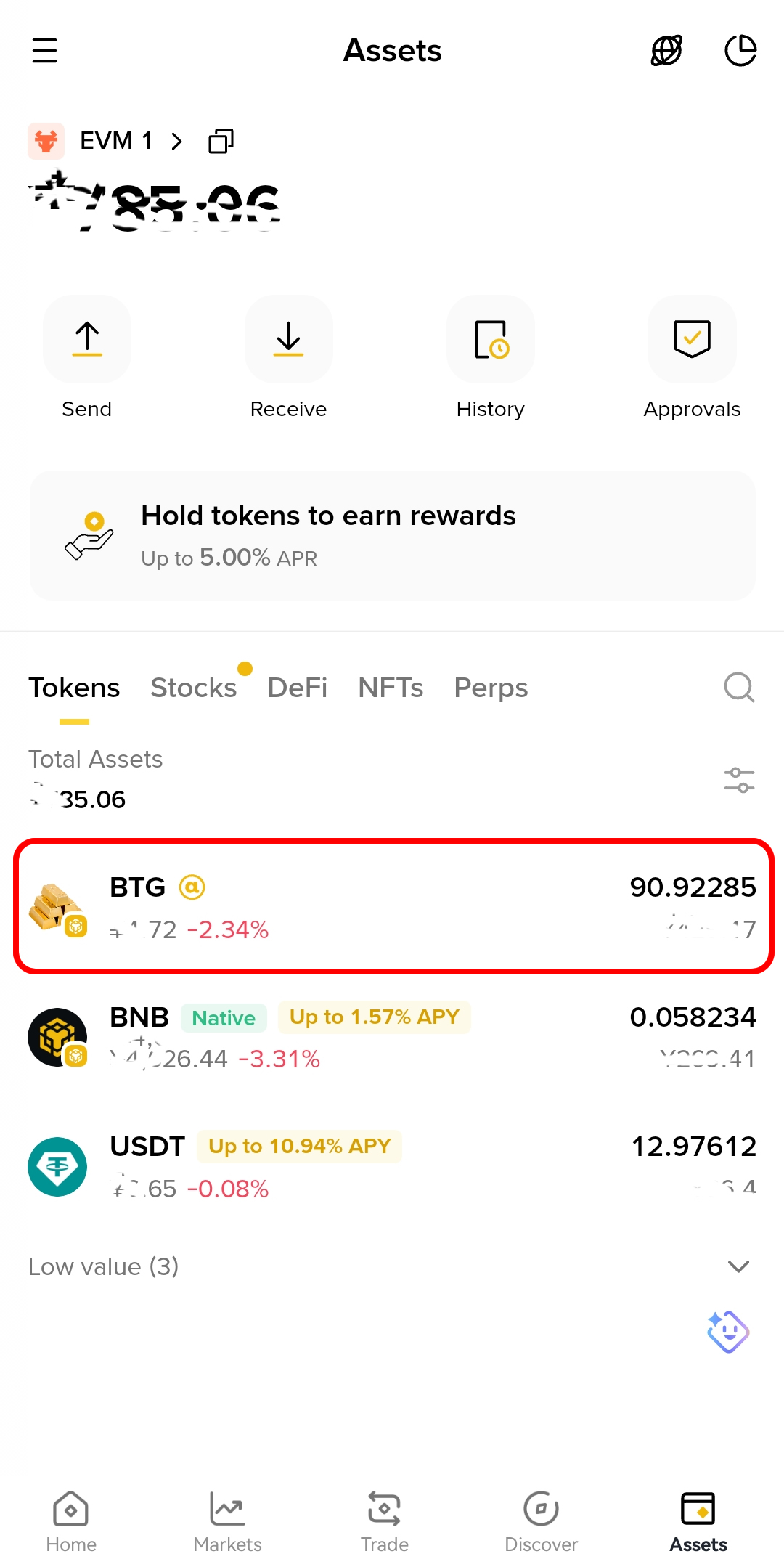
The “Use Exchange Balance” switch
If the switch is on, the swap can use your Binance exchange balance instead of the on-chain wallet balance. The two are different sources. Turn it off if you intend to spend the tokens held in the wallet, and check which balance the confirmation screen debits.
Verify it worked
- The wallet's BTG or USDT balance changed by the expected amount.
- The transaction appears in the wallet history with a hash.
- The hash resolves on BscScan for a BSC transaction.
- The token in the wallet is still the contract
0x4c90…f2374e, not a lookalike.
Troubleshooting
| Problem | What to do |
|---|---|
| BTG is missing from the token list | Search by contract, or import the token with the address above. |
| The quote changes before confirmation | Re-quote and review the new minimum received. A swap is not locked until it confirms. |
| “Insufficient gas” | Add a small BNB balance to the wallet, or check whether the fee is sponsored on the confirmation screen. |
| The approval succeeds but the swap fails | The price moved beyond slippage or the route changed. Re-quote and try again. |
| The swap used the exchange balance | Check the “Use Exchange Balance” switch and the source shown on the confirmation screen. |
| A “support” account offers to recover funds | A confirmed swap cannot be reversed. Do not share the recovery phrase or pay a recovery fee. |
Next step
Return to Trade on Binance App to compare the Alpha order book and the wallet swap, or read Trading Risks.