Set Up and Back Up
This page gets you from a fresh Binance Wallet to a wallet you can restore. Do the backup before you add Bitgold or receive more than a test amount.
Who this is for
First-time Binance Wallet users on the app or the browser extension. Skip the creation steps if the wallet already opens and you have a tested backup; read the verification section instead.
Before you start
- The Binance app from the official store, or the Binance Wallet Extension from Binance's own extension page. Do not install a build from a message or a mirror.
- Your Binance account security set up: password, MFA, and the device you normally use.
- A place to store a recovery password or seed phrase offline. A screenshot, a chat message, and a cloud note are not backups.
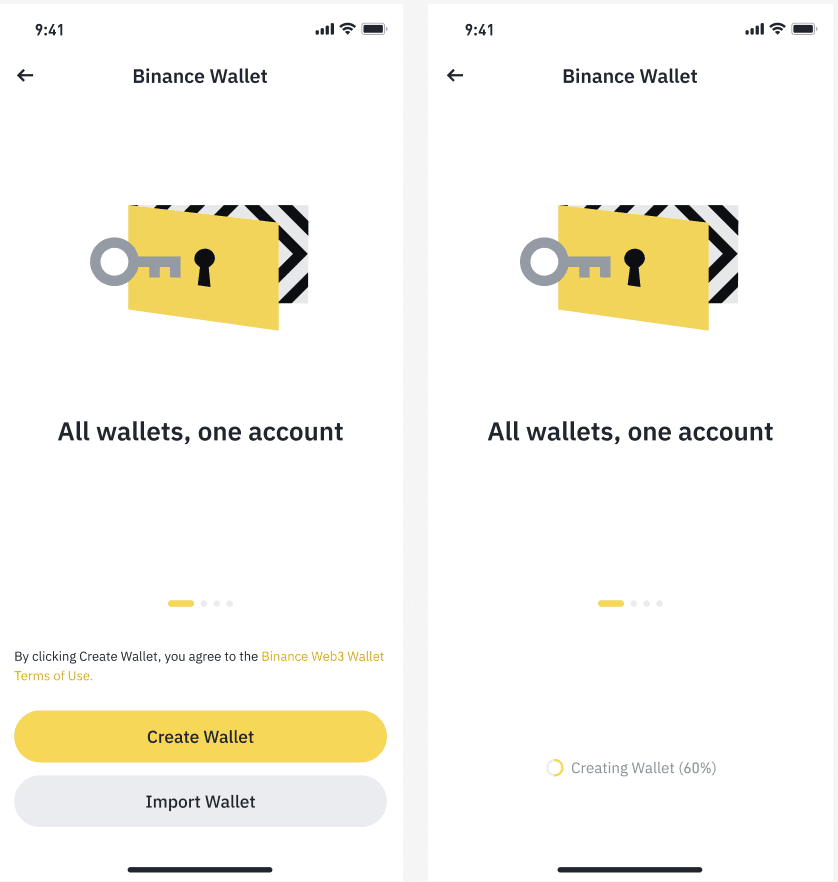
Create a keyless wallet
- Open the Binance app, go to Home, and switch to the Wallet tab.
- Tap Create Wallet. Binance generates the wallet and its key-shares; there is no seed phrase to write down.
- When the wallet opens, go to Settings → Wallet Management and choose a backup method:
- Quick Backup uses biometrics and Binance account verification.
- iCloud or Google Drive stores an encrypted key-share in your own cloud account.
- QR code saves an encrypted key-share as a code you keep offline.
- If the method asks for a recovery password, set one and store it separately. Binance does not keep this password and cannot reset it.
- Complete the verification step the app offers. Do not close the flow at "backup complete" without verifying.
Import an existing wallet
- On the same welcome screen, tap Import Wallet.
- Choose the recovery phrase or private key option, and type it inside the Binance app. Never enter it on a website, in a chat, or in a form that offers to "sync" or "upgrade" the wallet.
- Set the local unlock method the app requests, then confirm the imported address matches the wallet you expected.
An imported wallet's seed phrase or private key is the only recovery path. Binance cannot restore it, and a keyless backup does not cover it.
Back up and restore the extension
The browser extension has its own onboarding and its own wallet storage. Install it from Binance's official extension listing, then create or import a wallet there. A seed phrase or private key imported into the extension must be backed up by you; the app's keyless backup does not cover the extension wallet.
The extension's network list is separate from the app's. Adding Bitgold in one client does not add it in the other.
Verify it worked
- The wallet opens, shows an address, and the address matches the one you expect.
- Wallet Management shows a Backed Up tag, or your written seed phrase matches the import screen exactly.
- You have completed at least one restore test on a spare device or after reinstalling, using the method you chose.
- The recovery password is stored somewhere other than the device that holds the wallet.
Troubleshooting
| Problem | What to do |
|---|---|
| The backup flow stops at verification | Reopen Settings → Wallet Management, choose the same method, and complete verification. A backup that was not verified is not a backup. |
| You forgot the recovery password | Binance cannot reset it. Without the password, that key-share cannot be decrypted; check whether another key-share and method are still available. |
| The imported address is different from the old wallet | Check the phrase words, order, and language. A single wrong word produces a different wallet. |
| The extension shows a different wallet than the app | They are separate wallets unless you imported the same phrase into both. Do not assume balances or networks are shared. |
| A "Binance Wallet" app or extension appears in search results | Start from Binance's official site and follow its link. Binance Wallet is part of the Binance product, not a separate third-party wallet brand. |
Next steps
- Add Bitgold Network — add chain ID
618on the phone. - Add Bitgold Network — add the same profile in the browser.