Add a Custom Token
After this page you can import a Bitgold token into MetaMask with a verified contract address, and you will know why the token list is a display, not a valuation.
Who this is for
You hold a token on Bitgold that MetaMask does not show. Skip this page if the token already appears, and never import BTG as a token: BTG is the native coin of chain 618.
Before you start
- The contract address from the issuer's official site or documentation. A chat message, a comment, or an account that offers to "help" is not a source.
- The symbol and decimals from the same source.
- Bitgold Mainnet selected and the correct account active. MetaMask tracks tokens per account and per network.
Steps
1. Open the token list
Select the Tokens tab in the account view, then Import tokens. The link may sit under a three-dot menu in some versions, and mobile builds use a slightly different path. TokenPocket calls the same action Add Token or Custom Token; the wording differs, the idea does not.
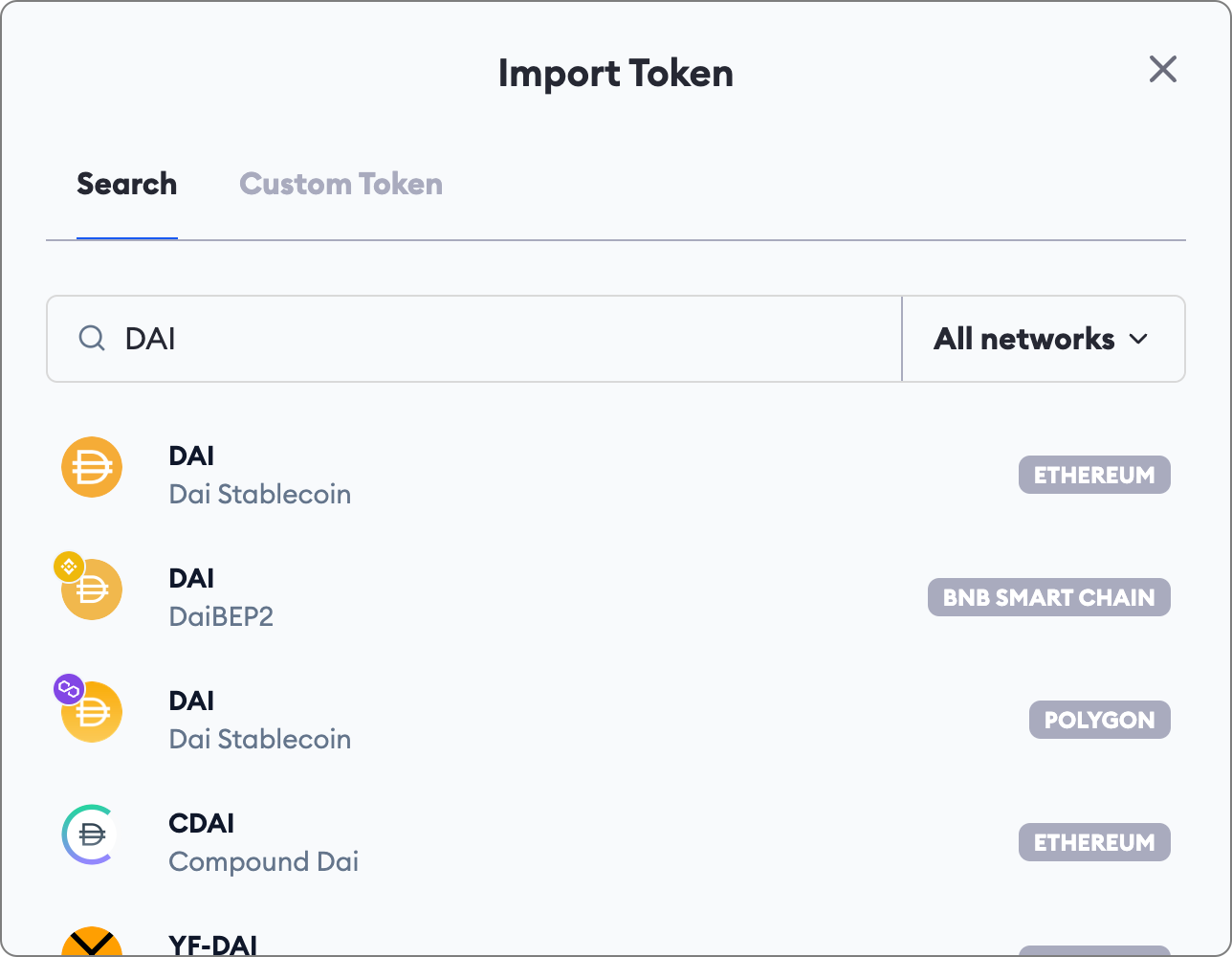
2. Choose a custom token
Select Custom token rather than picking from MetaMask's suggested list. The suggested list is convenient, but a contract you did not verify is not a recommendation.
3. Paste the contract address
Paste the address into the contract field. MetaMask reads the symbol and decimals from the contract and fills them in.
Compare both with your official source before you continue. A copycat contract can use the same name and symbol as the real token.
4. Confirm the import
Select Import or Add token, then open the token in the list and check its contract address. Importing is a local display action: it sends no transaction, spends no gas, and does not create value. The token balance was already on chain before you imported it.
Verify it worked
- The token appears under the account with the expected symbol and amount.
- The contract address in MetaMask matches your official source character by character.
- The token's page on www.bitgold.live lists the same contract and shows the same balance for your address.
- Switching accounts hides the token, because tokens are tracked per account.
Troubleshooting
| Problem | What to do |
|---|---|
| The token does not appear | Check that Bitgold Mainnet is selected and that the contract exists on chain 618. A token from testnet chain 617 will not appear on mainnet. |
| The symbol or decimals are different | Remove the token and re-add the verified address. Matching letters are not proof of the same contract. |
| A token arrives that you never bought | Anyone can airdrop a token to any address. Do not open links in its name, trade it, or approve it; see Fake Token Scam. |
| The balance shows but the token cannot be sold | The contract may block transfers or take a tax. Treat it as a fake until the issuer's official documentation says otherwise. |
Next steps
- Add a Custom Token (TokenPocket) — the same task on a phone.
- What Is a Custom Network? — why the selected network decides which tokens exist.