Install MetaMask
After this page you will have MetaMask installed from an official browser listing, a wallet that unlocks, and a recovery phrase stored offline.
Who this is for
Desktop users who need a browser wallet for Bitgold and the Console. Skip this page if MetaMask is already installed and backed up.
Before you start
- A desktop browser: Chrome, Brave, Edge, or Firefox.
- The official site metamask.io. Use its link to the browser's official extension store; do not install from a search ad or a file.
- Paper and a pen for the recovery phrase.
- A decision between a new wallet and restoring an existing one.
A browser extension can read the page
MetaMask injects into every page you open. Use a browser profile that you reserve for wallets and the sites you trust, not one shared with random browsing.
Steps
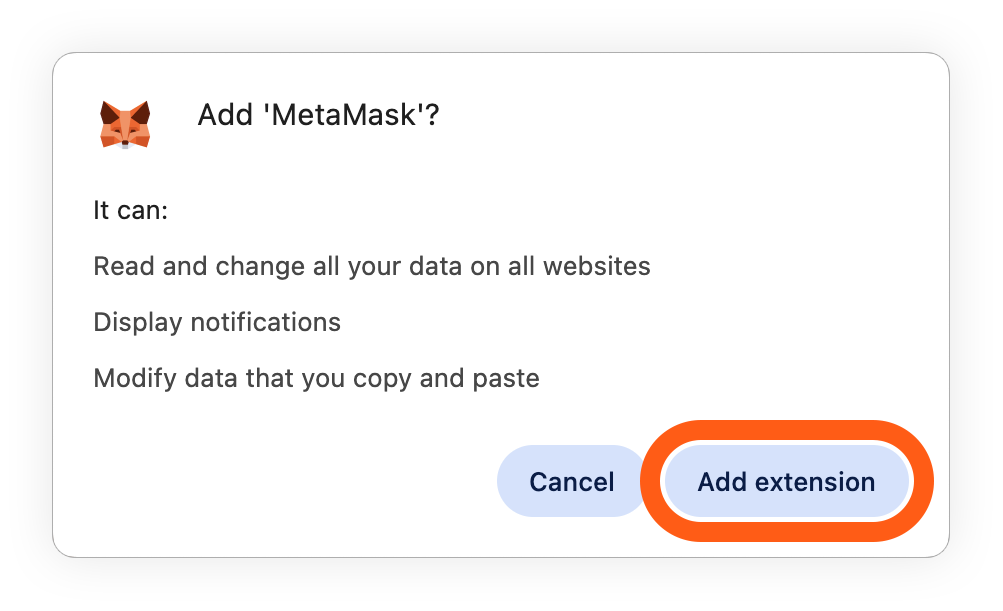
1. Install from the official store listing
Open metamask.io and follow the install link for your browser. The store listing should name the same publisher as the official site.
Read the permissions prompt before you accept it, and check the listing for obvious inconsistencies. How to Verify the Wallet App walks through the checks.
2. Pin the extension
Open the browser's extensions menu and pin MetaMask so its icon stays visible. You will use it to approve connections and transactions, and a hidden prompt can go unnoticed.
3. Create a wallet or restore one
Choose Create a new wallet or Import an existing wallet. The wording varies by version.
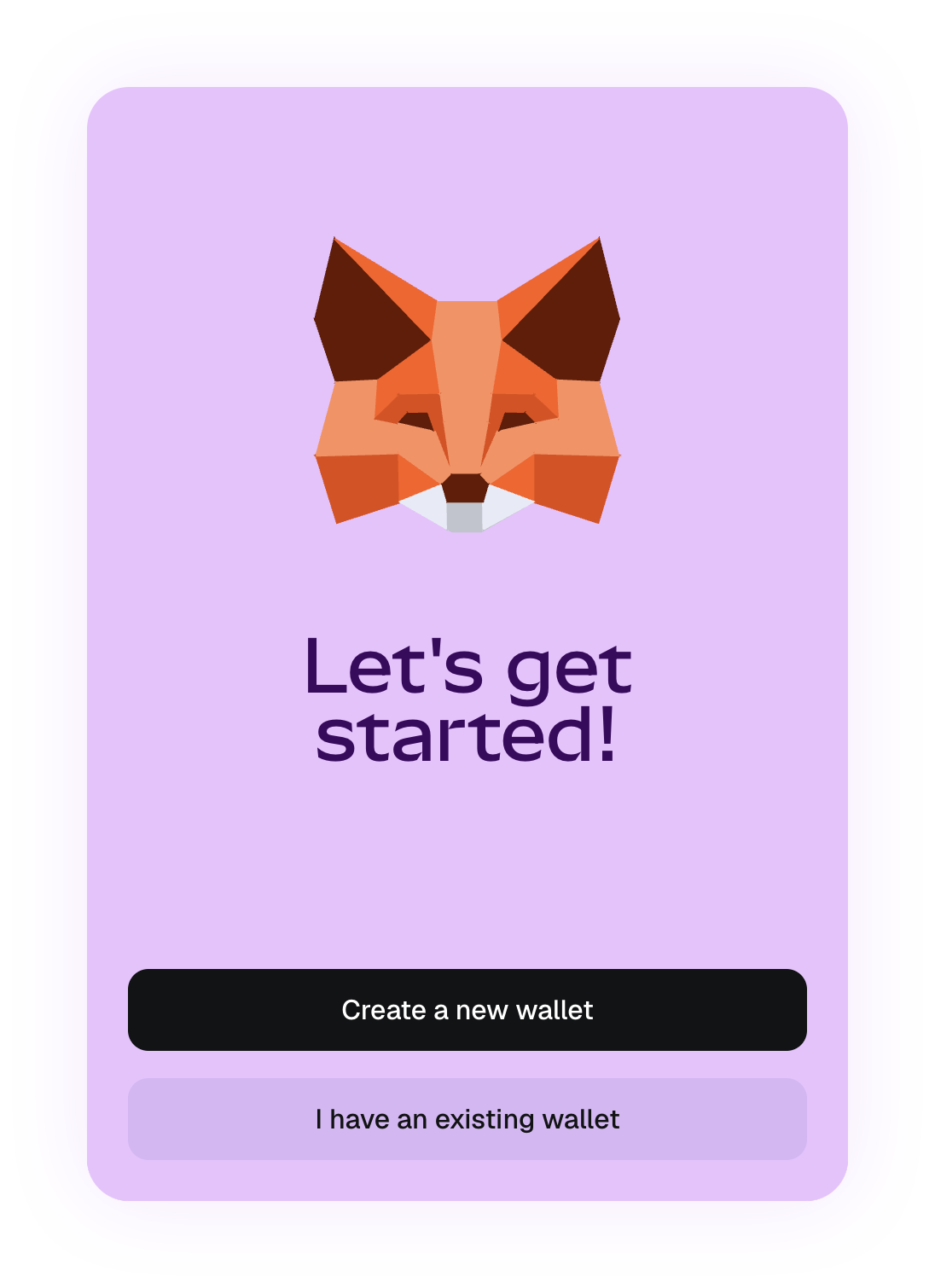
For a new wallet, set a password. That password decrypts the extension's local data; it does not restore the wallet on another computer.
For an existing wallet, enter the recovery phrase or private key in the extension itself. Never enter it on a website that claims to connect, sync, or validate your wallet.
4. Back up the recovery phrase
Reveal the phrase in the wallet's security settings and write it down in order. Complete the confirmation step and compare the paper with the screen. Store the paper offline, away from the computer.
Official apps never ask for the recovery phrase during an update. Support agents do not need it, and a site that asks is trying to take the wallet.
5. Find the account and network controls
The account name sits at the top of the popup, and the network selector sits beside it. New installs usually start on Ethereum. Bitgold is not in the list yet; the next page adds it.
Verify it worked
- The MetaMask icon is pinned, and the popup unlocks with your password.
- An account address is visible and can be copied.
- The written phrase matches the backup screen exactly.
- The network selector usually shows Ethereum and does not yet list Bitgold.
Troubleshooting
| Problem | What to do |
|---|---|
| The extension vanished after a browser restart | Open the extensions page and pin it again. If it was removed, reinstall from the official store and restore with the recovery phrase. |
| A "Bitgold wallet" extension or a lookalike appears in results | Start from metamask.io and use its store link. Bitgold is a network you add to an EVM wallet, not a separate extension to install. |
| You forgot the MetaMask password | The password is local. Reinstall the extension and restore the wallet with the recovery phrase. |
| The phrase is rejected during restore | Check order, spelling, and whether the wallet uses 12 or 24 words. Do not try random variations of a phrase you do not have. |
| A page asks you to "sync" or "validate" MetaMask | Close it. That is a phishing pattern, and the phrase is the target. Verify the app through How to Verify the Wallet App. |
Next steps
- Add Bitgold Network (MetaMask) — add chain ID
618and switch to it. - What Is a Custom Network? — what each field does before you fill the form.